
The power button is one of the most essential components of any laptop. For users of ASUS laptops, understanding how the power button works, where it is located, and how to troubleshoot common issues can save time and prevent frustration.
Whether you are turning on your device, putting it to sleep, or dealing with a non-responsive system, the ASUS laptop on button plays a crucial role in everyday usage. This guide provides a detailed overview of its location, functions, and solutions to common problems.
Where Is the Power Button on an ASUS Laptop?
The location of the power button on an ASUS laptop can vary depending on the model and design. However, there are some common placements.
Top Right Corner of Keyboard
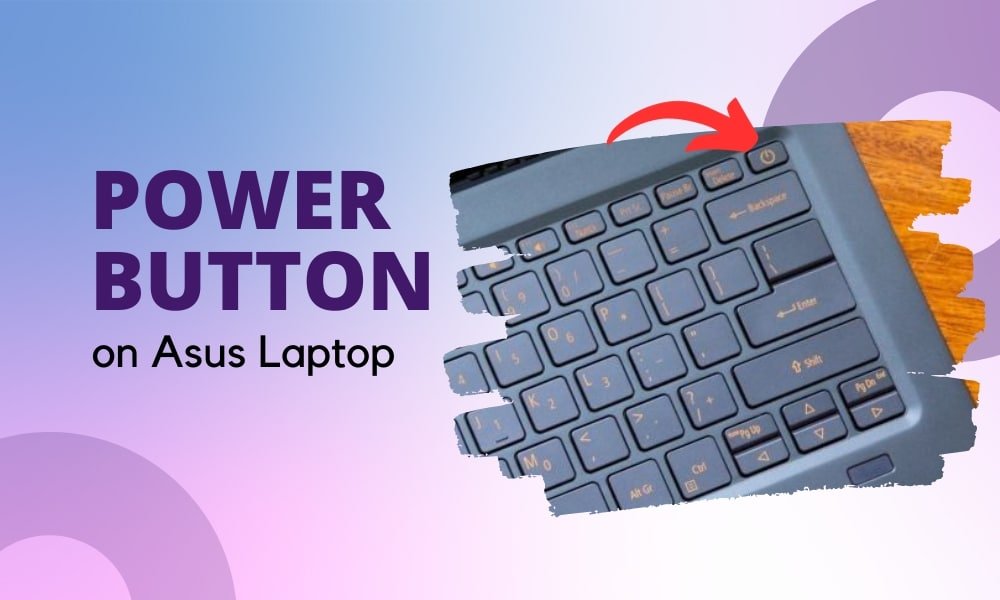
Most ASUS laptops have the power button located at the top-right corner of the keyboard. It is often slightly separated from other keys to prevent accidental presses.
Above the Keyboard
In some models, the power button is placed above the keyboard, near the hinge area. This design is common in premium or slim laptops.
Integrated into the Keyboard
Certain modern ASUS laptops integrate the power button into the keyboard layout, sometimes doubling as a fingerprint sensor.
Side of the Laptop
A few models may have the power button located on the side, especially in compact or 2-in-1 devices.
Functions of the ASUS Laptop Power Button
The power button is not just for turning your laptop on and off. It performs multiple functions depending on how it is used.
Powering On the Laptop
Pressing the power button once turns on the laptop and starts the operating system.
Shutting Down
When the laptop is on, pressing the power button (depending on settings) may initiate shutdown or bring up power options.
Sleep Mode
A quick press can put the laptop into sleep mode, saving power while keeping your work intact.
Force Shutdown
Holding the power button for several seconds forces the laptop to shut down. This is useful when the system becomes unresponsive.
Wake Function
Pressing the power button can wake the laptop from sleep or hibernation mode.
Common Power Button Issues
Like any hardware component, the power button can sometimes malfunction. Here are common issues users may encounter.
Power Button Not Responding
Pressing the button does nothing, and the laptop does not turn on.
Delayed Response
The laptop takes longer than usual to respond after pressing the button.
Stuck or Loose Button
The button may feel stuck, loose, or physically damaged.
Intermittent Functionality
The button works sometimes but not consistently.
Troubleshooting ASUS Laptop Power Button Issues
If your ASUS laptop power button is not working properly, try these troubleshooting steps.
1. Check the Power Supply
Before assuming a hardware issue, ensure that the laptop is receiving power.
- Plug in the charger and check the charging indicator
- Try a different power outlet
- Use an alternative compatible charger if available
Sometimes the issue is related to battery or power, not the button itself.
2. Perform a Hard Reset
A hard reset can fix temporary glitches.
- Disconnect the charger
- Remove the battery (if removable)
- Press and hold the power button for 15–30 seconds
- Reconnect power and try turning on the laptop
This helps clear residual electrical charge.
3. Inspect the Power Button
Check for physical damage.
- Ensure the button is not stuck or jammed
- Clean around the button using a soft cloth
- Avoid using excessive force
If the button feels loose or broken, it may require repair.
4. Check Display and System Issues
Sometimes the laptop is on, but the screen is not displaying anything.
- Look for indicator lights or fan noise
- Connect an external monitor
- Adjust brightness settings
This can help determine whether the issue is with the display rather than the power button.
5. Update or Reset BIOS
In rare cases, BIOS issues can affect startup.
- Access BIOS settings (if possible)
- Reset to default settings
- Update BIOS using official ASUS tools
Proceed carefully, as incorrect updates can cause further issues.
6. Use Keyboard Shortcuts or Alternative Methods
Some ASUS laptops allow powering on through keyboard combinations or docking stations. Check your model’s features for alternative options.
7. Seek Professional Repair
- Contact ASUS customer support
- Visit an authorized service center
- Consider warranty coverage
Professional technicians can diagnose and fix internal problems.
Tips to Maintain Your ASUS Laptop Power Button
Here are some maintenance tips.
Handle with Care
Avoid pressing the button too hard or frequently without need.
Keep It Clean
Dust and debris can affect the button’s performance. Clean regularly with a soft cloth.
Avoid Liquid Exposure
Keep liquids away from the keyboard and power button area.
Use Proper Shutdown Methods
Use the operating system’s shutdown option instead of forcing shutdowns frequently.
When to Replace the Power Button
- It is physically damaged
- It no longer responds despite troubleshooting
- Internal connections are faulty
Replacement should be done by professionals to avoid damaging other components.
Conclusion
The power button on an ASUS laptop is a small but essential component that controls critical functions such as startup, shutdown, and sleep mode. Understanding its location, uses, and common issues can help you maintain your device and troubleshoot problems effectively.
By following proper care practices and addressing issues promptly, you can ensure that your ASUS laptop continues to function smoothly and reliably.
